Our expert Svetlana Gizatulina explained how to give access to a bot only after users subscribe to a channel.
If your bot offers useful materials or features, you can open access to it only after users subscribe to your channel. This way, you can grow your subscriber count.
Step one — connect the bot to puzzlebot
Learn how to do it in this video tutorial.
Step two — connect a group, channel or forum
Learn how to do it in the Knowledge base: https://help.puzzlebot.top/article?r=4&a=9.
Step three — prepare the commands
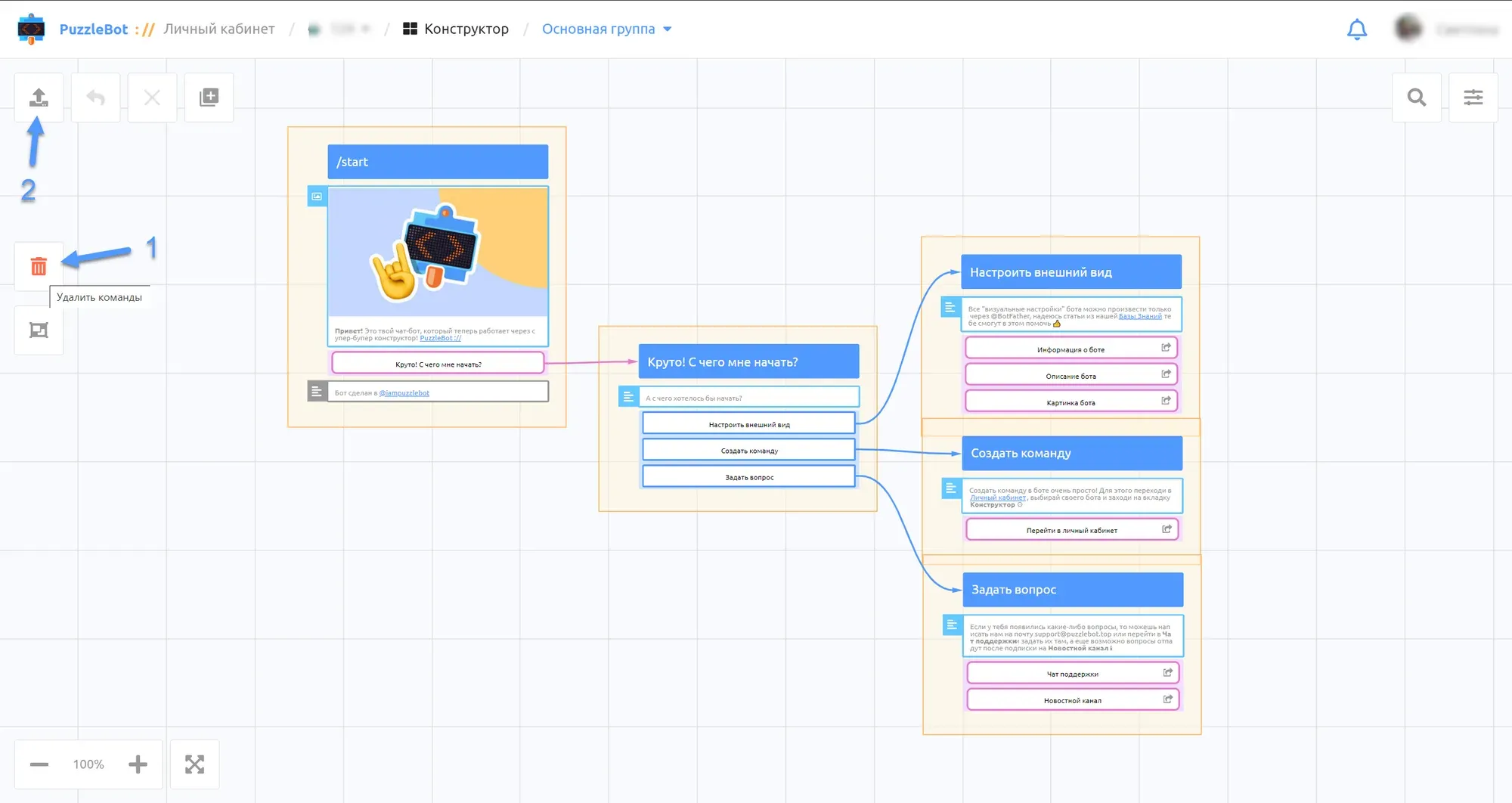
Go to the Constructor tab and delete the preset commands:
1. Hold shift+alt and select all the commands with the left mouse button to delete them.
2. Apply the changes.
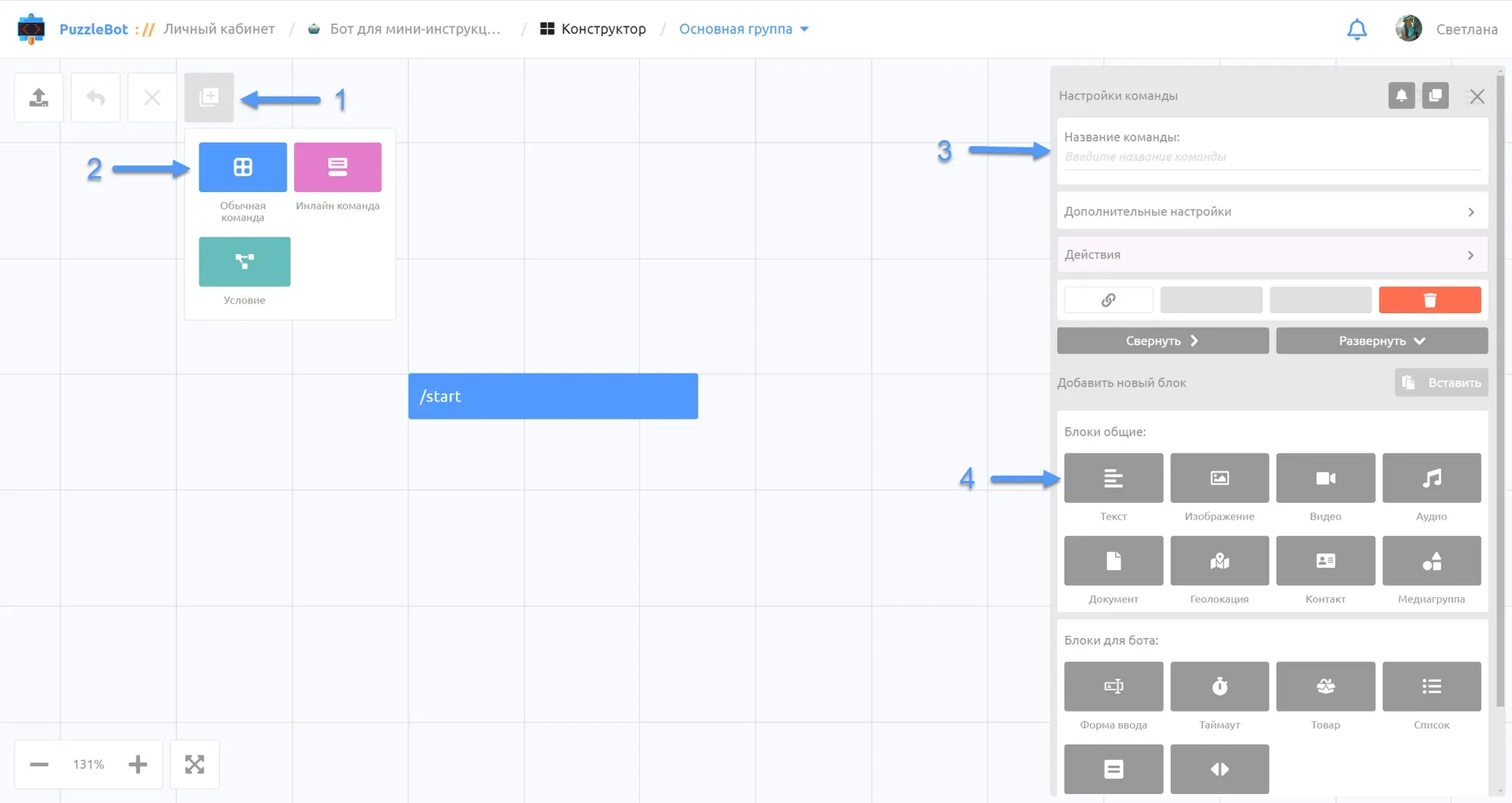
Create 3 commands:
1. Click + (add command).
2. Select a regular command.
3. Enter the command name "Command 1".
4. Select the Text block and add a message.
Text for command 1:
"Hi! I'm a learning bot. To get access to the materials, you just need to be a subscriber of our channel (channel link). Subscribe and tap the "I'm subscribed!" button"
5. Repeat steps 1-4 to create 2 more commands.
Text for command 2:
"Sorry, I can't see your subscription
Subscribe (channel link) and I'll check again."
Text for command 3:
"Great, I can see your subscription. Now you can use the bot."
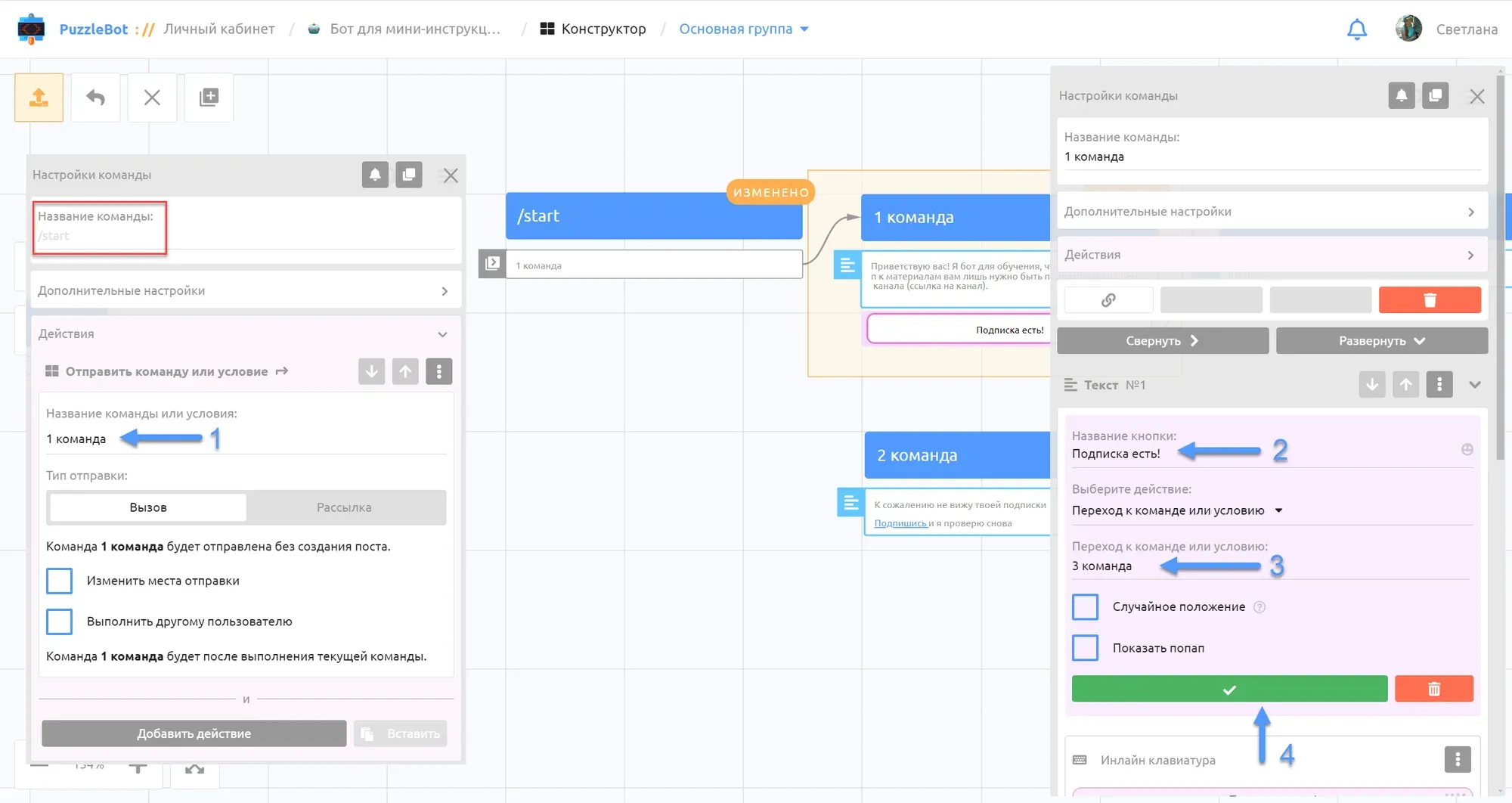
Now create buttons in the commands and link all the commands together.
1. Open the /start command, in the Actions section select Send command or condition, and choose "Command 1".
2. Open "Command 1"; to create a button, select an inline keyboard and enter the button name "I'm subscribed".
3. Select a transition to "Command 3".
4. Save the settings and close command 1.
Repeat steps 2-4 for command 2.
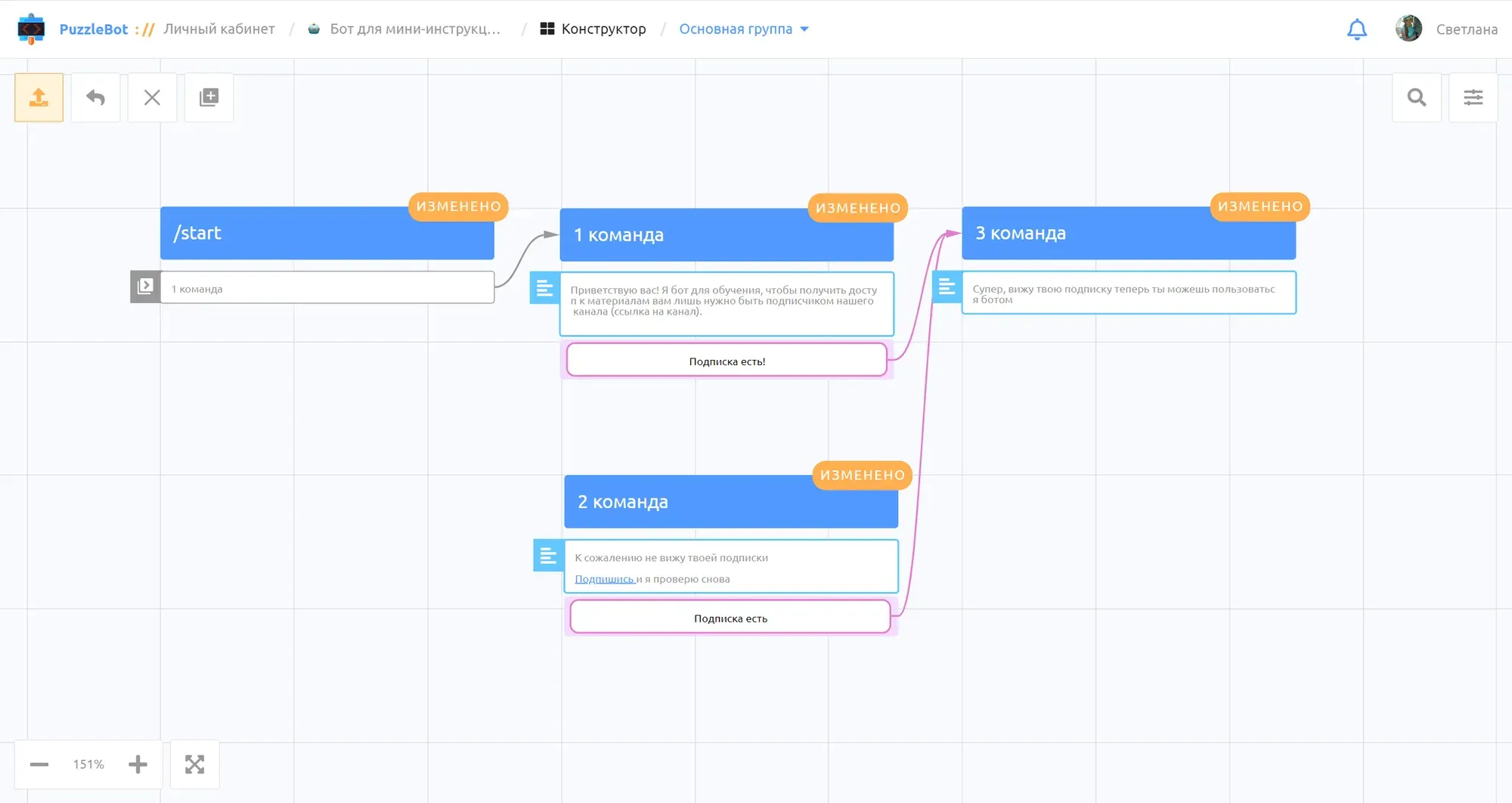
Result:
Command 1 is sent after the bot starts; it explains the rules and checks for a channel subscription when the button is tapped.
Command 2 is sent if there's no subscription and checks for a channel subscription when the button is tapped.
Command 3 is sent if the user is subscribed and opens access to the bot.
Step four — create and set up a command group
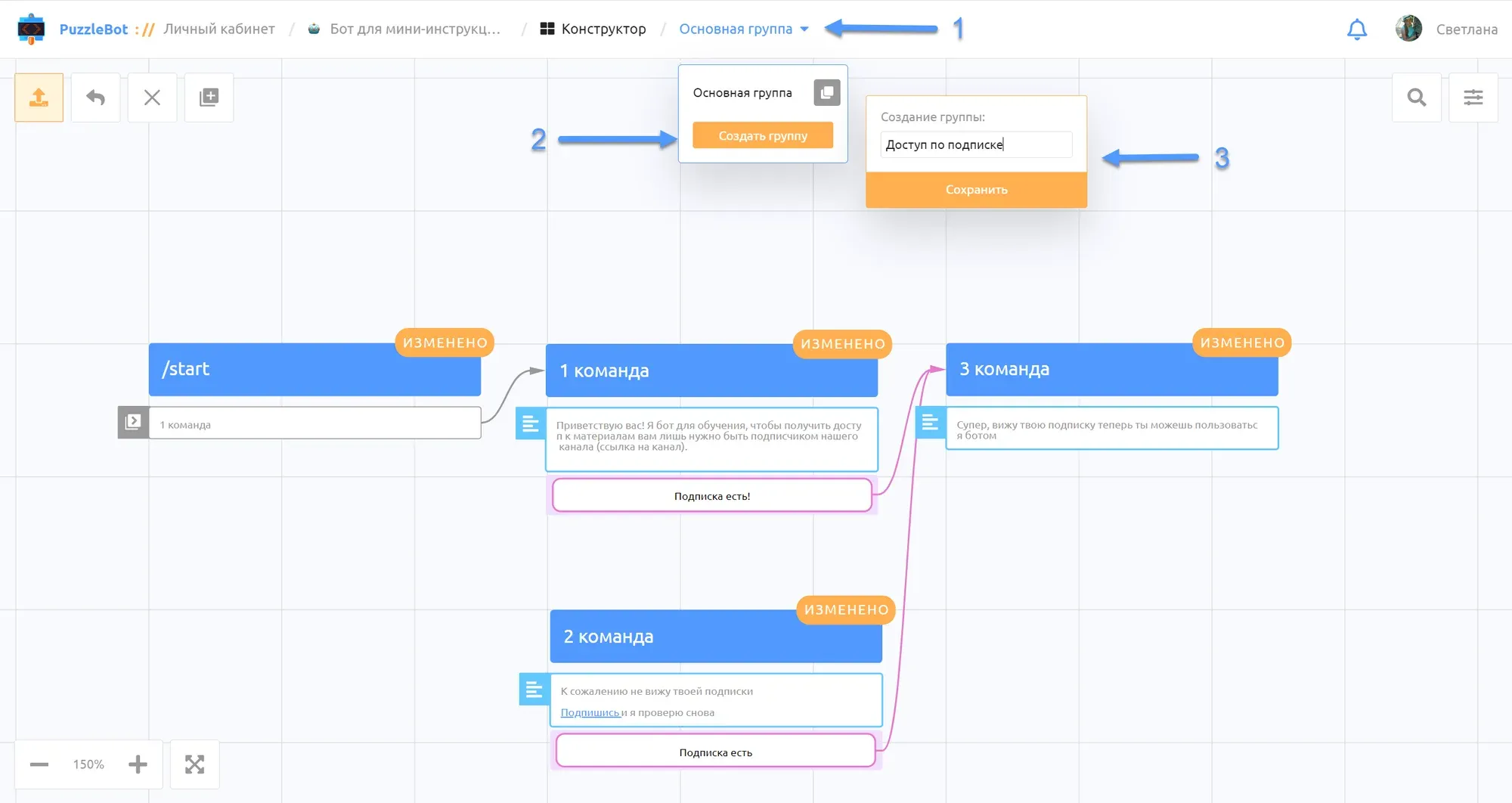
Create the "Subscriber access" group. This group will hold the commands that should be available only to channel subscribers.
1. Hover over the main group.
2. Click "Create group".
3. Enter the group name and save.
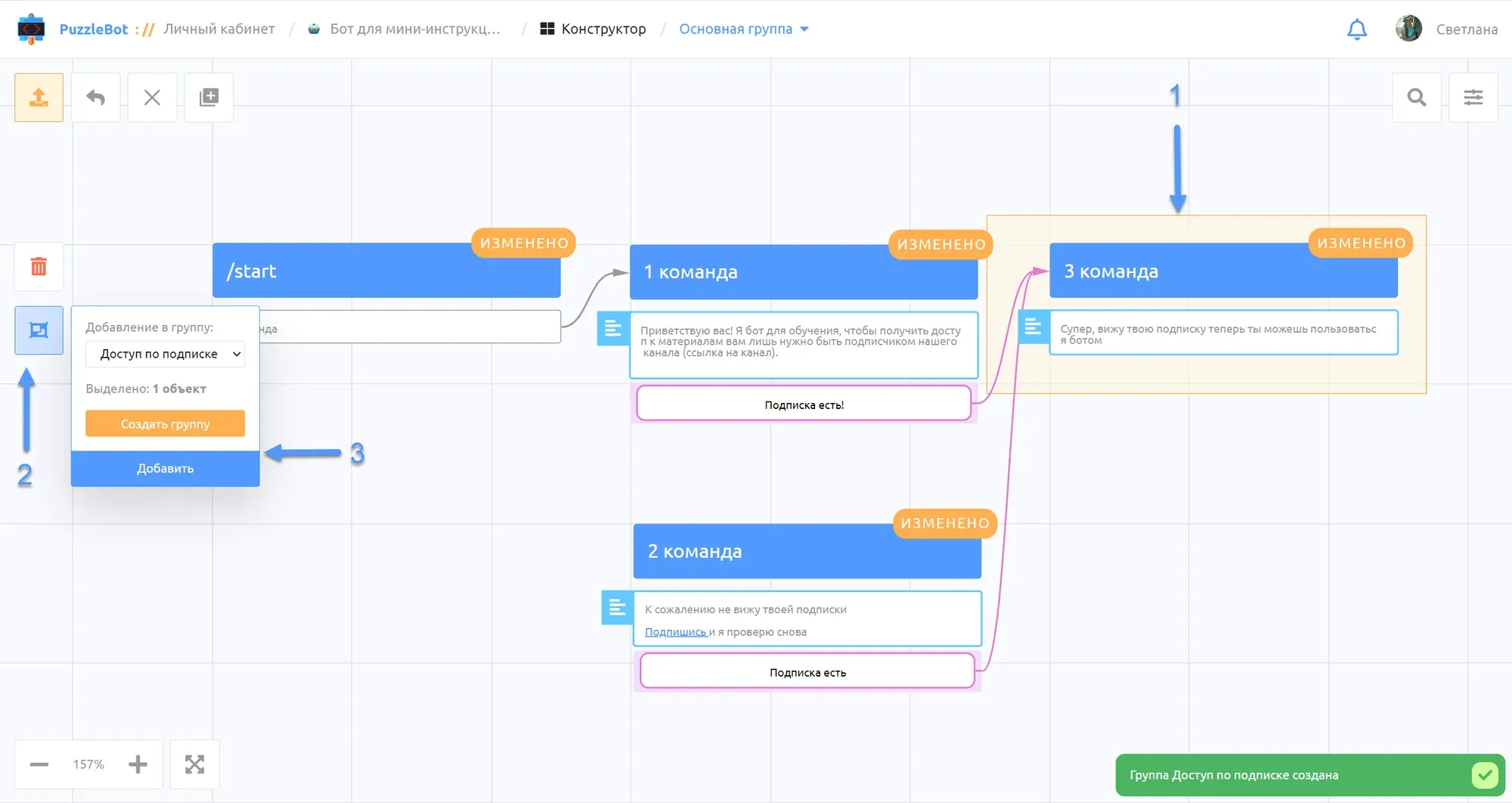
Move command 3 to the new group, since it should run only for channel subscribers.
1. Hold shift+alt and select command 3 with the left mouse button.
2. Select Move to group.
3. Select the group you created and click Add.
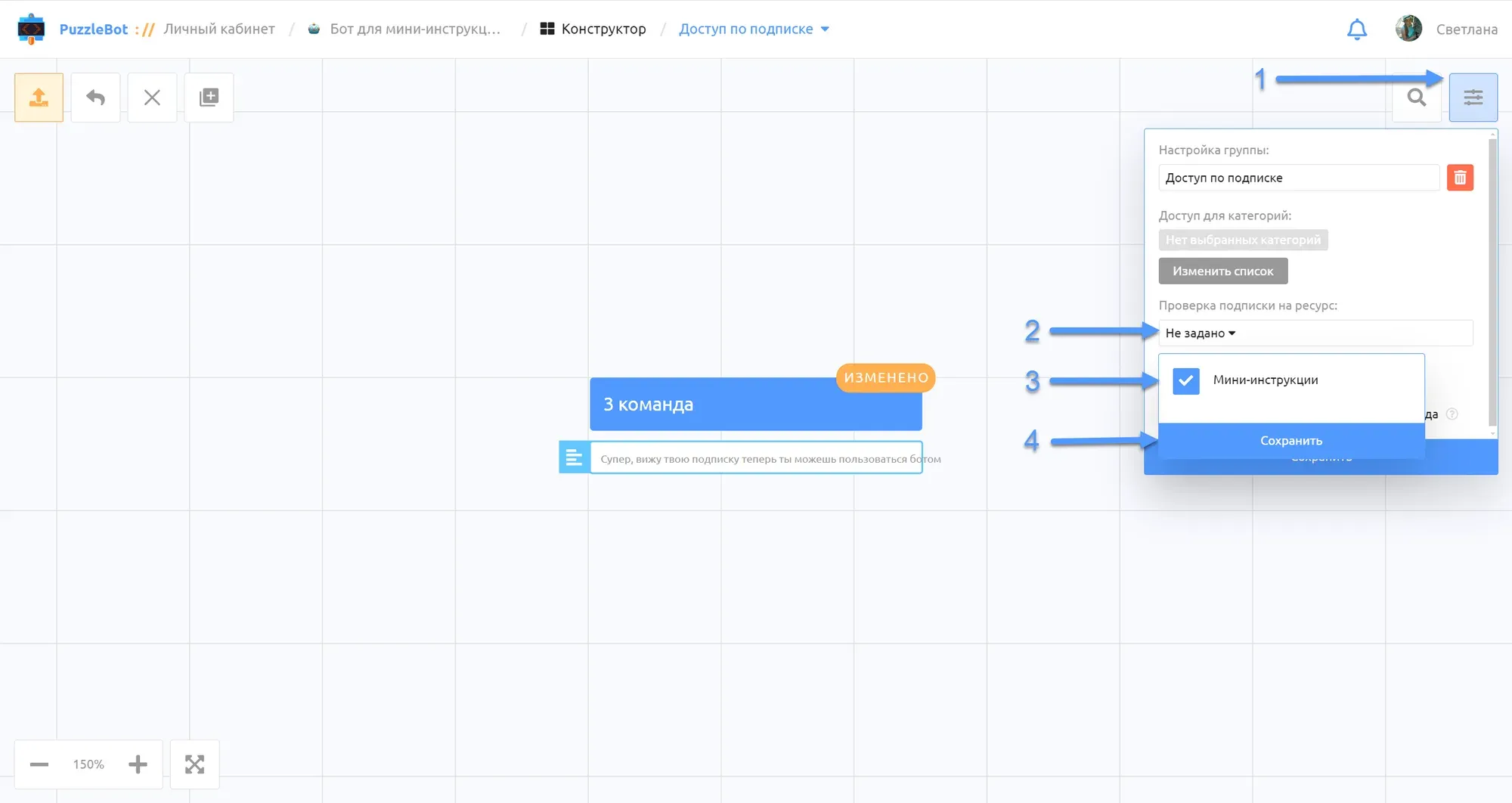
In the group settings (1)
2. Set a resource check.
3. Select the channel.
4. Save the settings.
Step five — set up events
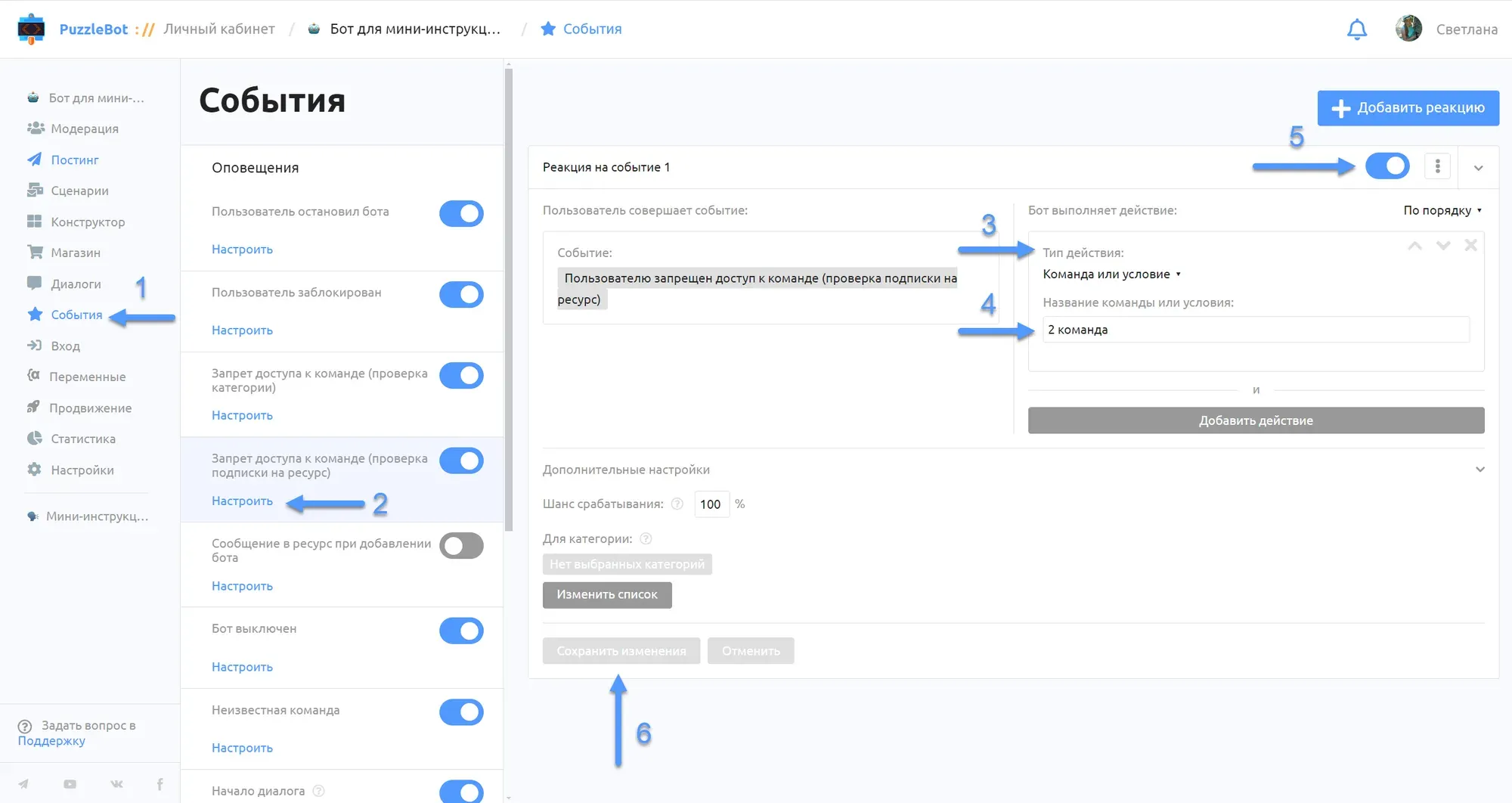
1. Go to the Events section.
2. Select "Command access denied (resource subscription check)" and click Configure.
3. For the action type, select "Command or condition".
4. Enter Command 2.
5. Make sure the setting is enabled and save.
Step six — finish the setup and test the bot
Apply the changes in each command group and test the bot from a second account.
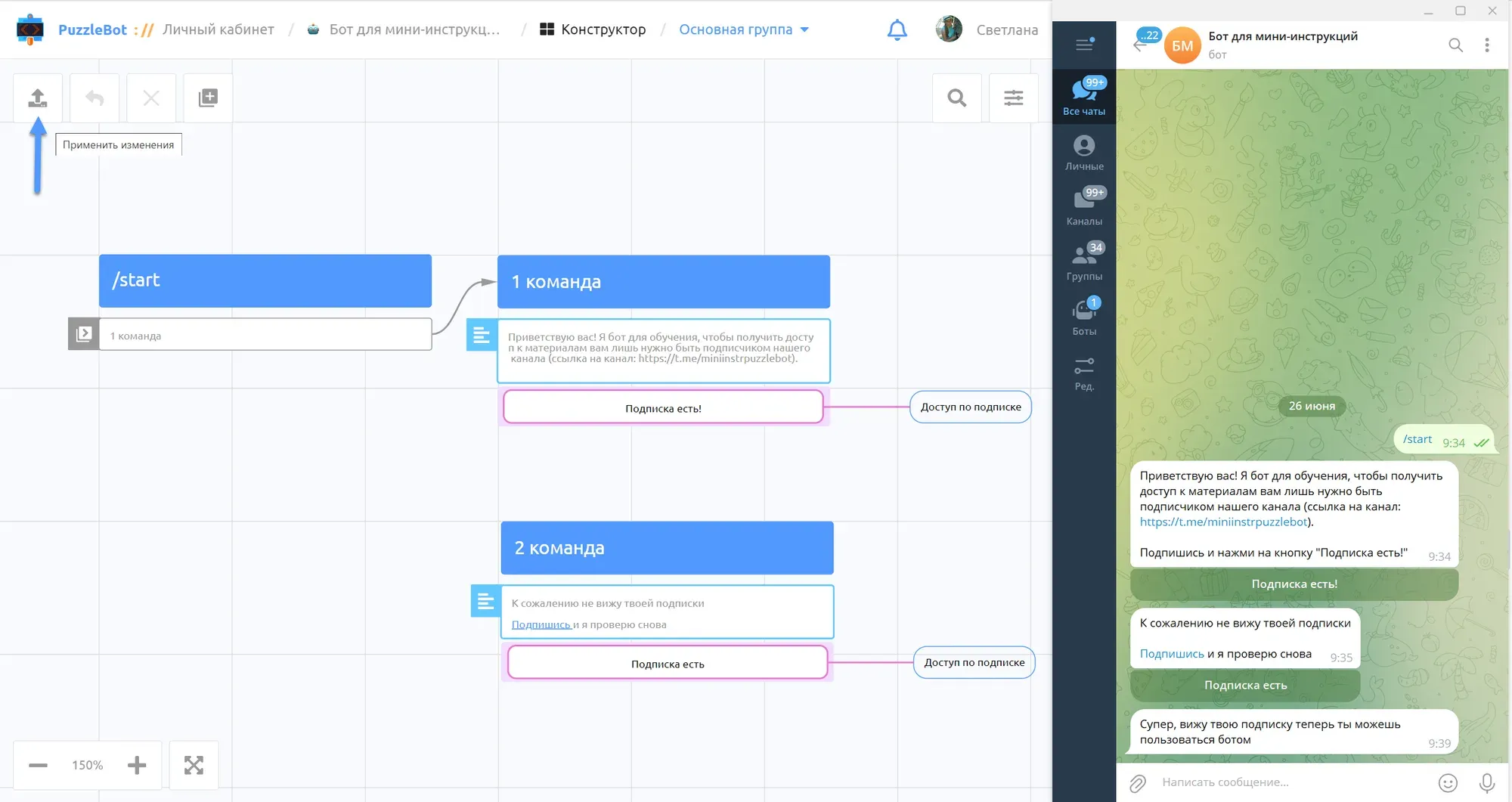
The setup is done. Now you can add other commands to the "Subscriber access" group, and they'll be available only to channel subscribers.
Want to ask our expert a question? Leave it in the comments under the latest post in our channel, and we'll break down the most interesting ones.