In this guide, Svetlana Gizatulina explains how to restrict access to a command for 1 hour or any other period. This is useful when you need to temporarily limit how often a user can get certain materials — for example, letting them take a quiz only once a day.
Step 1 — Connect your bot to puzzlebot
You can find out how in the Knowledge Base: https://help.puzzlebot.top/article?r=3&a=18
Step 2 — Create and set up the "main" command with time-limited access
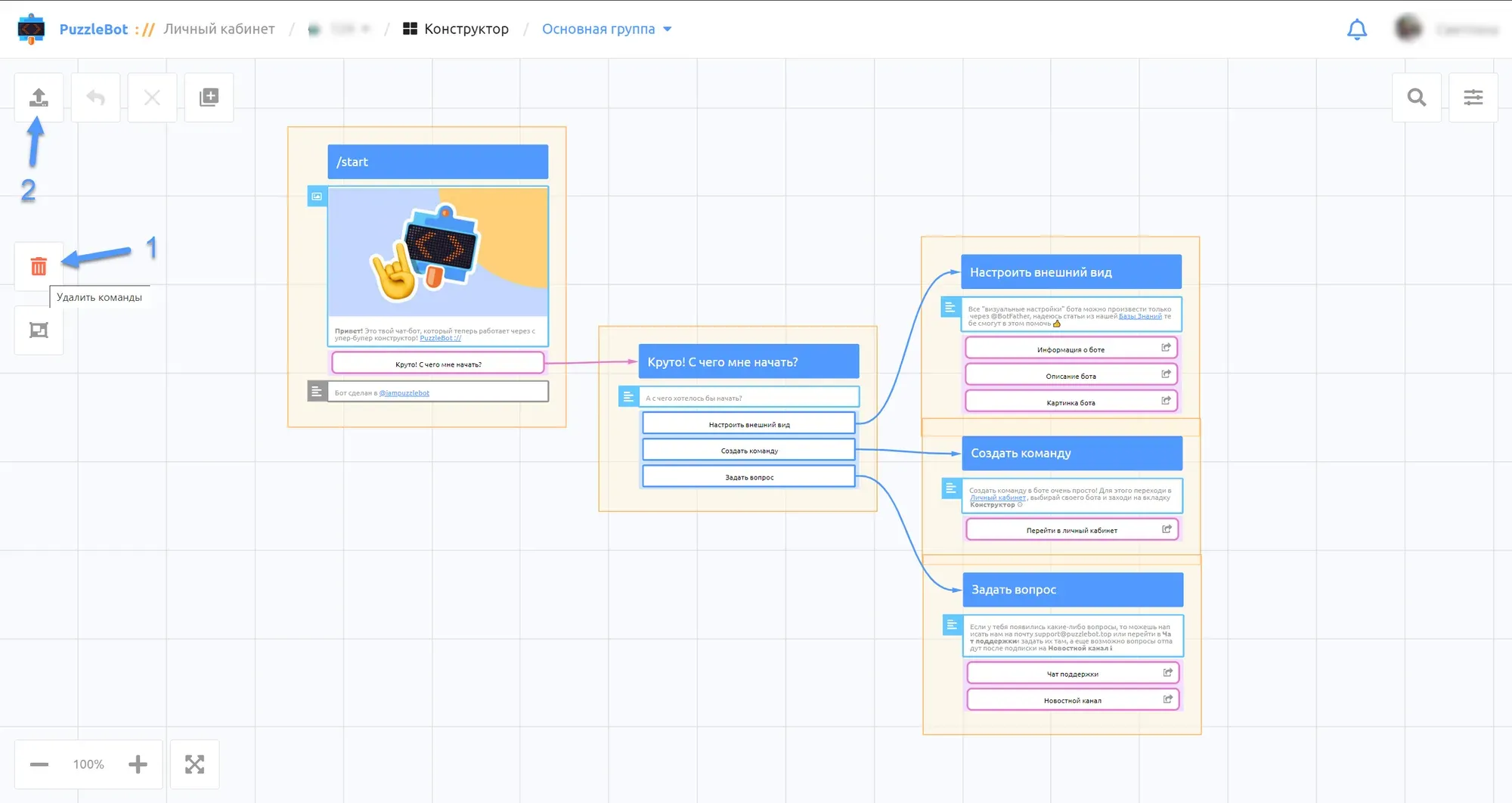
Go to the Constructor tab and delete the preset commands:
1. Hold Shift+Alt, select all commands with the left mouse button and delete them.
2. Apply the changes.
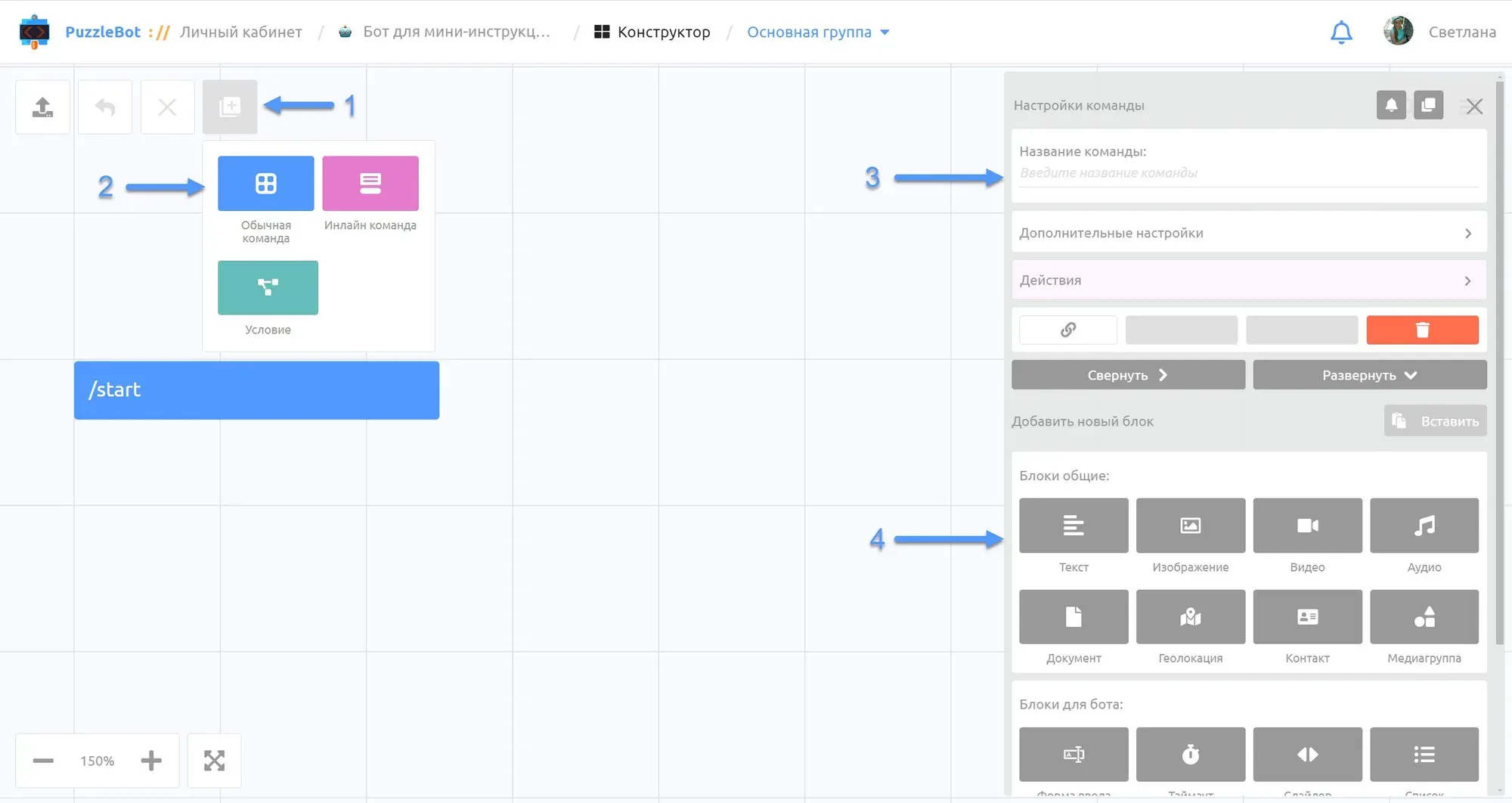
Create the "main" command, which the user will be able to access only once per hour:
1. Click + (add command).
2. Choose Regular command.
3. Enter the command name.
4. Choose the block you need (we'll use the Text block for this demo).
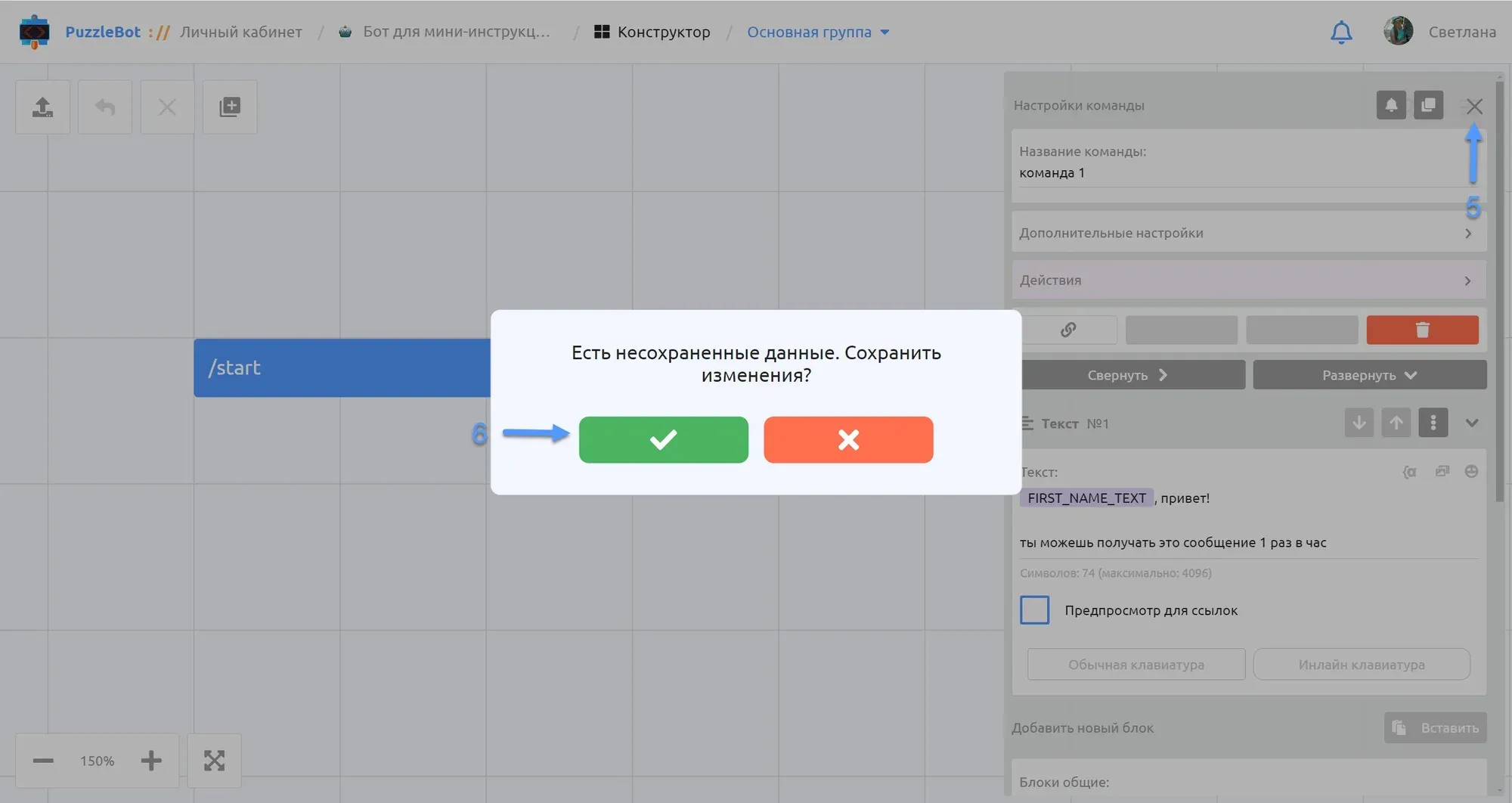
5. Add your prepared message and close the command.
6. Confirm saving the changes.
Step 3 — Create a command to handle early calls
Create a command that notifies the user if they try to call the "main" command too early. To do this, repeat steps 1–6 from Step 2 to create a command with a message.
Step 4 — Create a command that checks all the conditions
Create a command that checks the rules and sends the right command to the user.
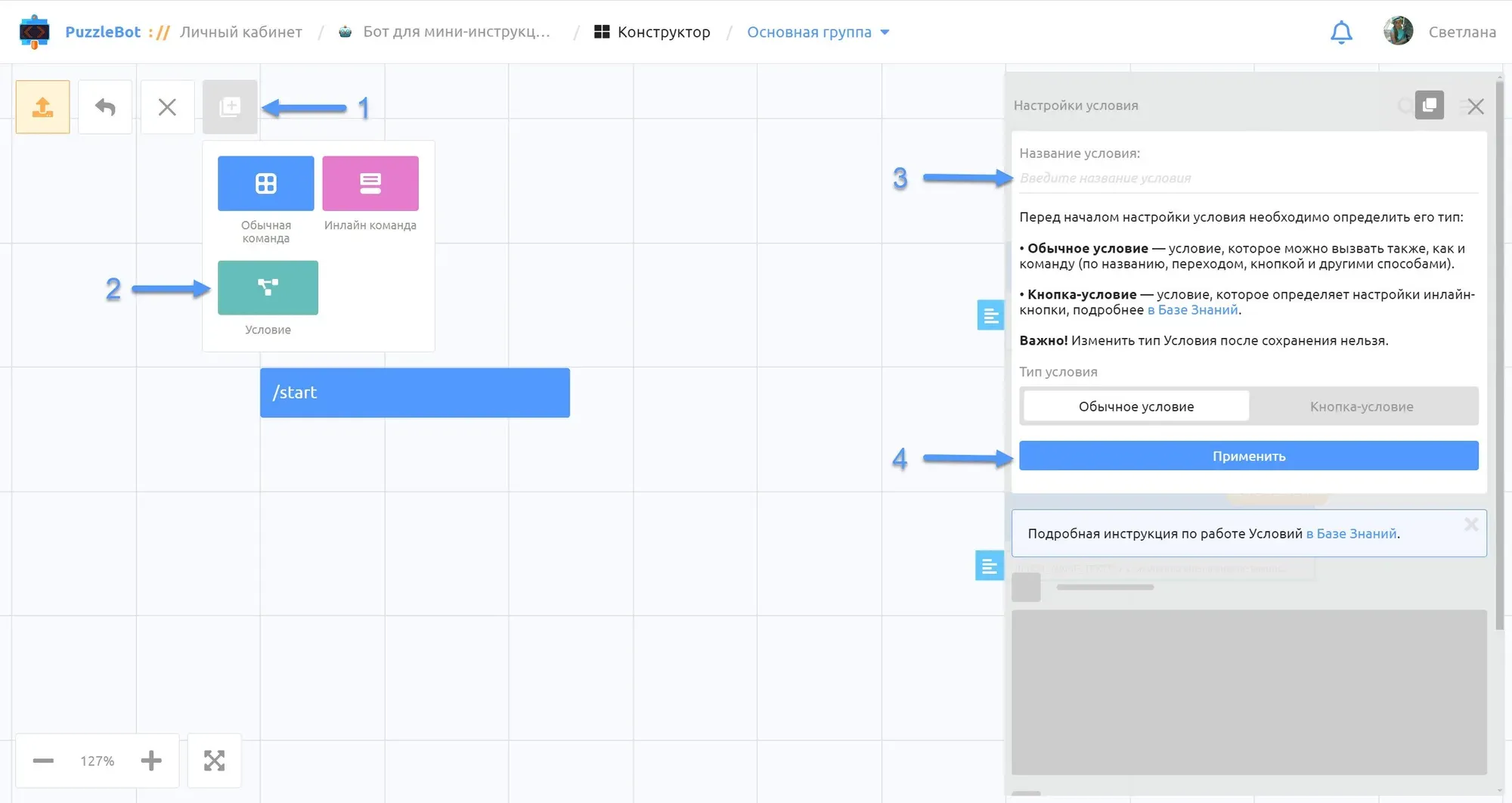
1. Click + (add command).
2. Choose the Condition command.
3. Enter the command name.
4. Leave the condition type as "Regular condition" and click Apply.
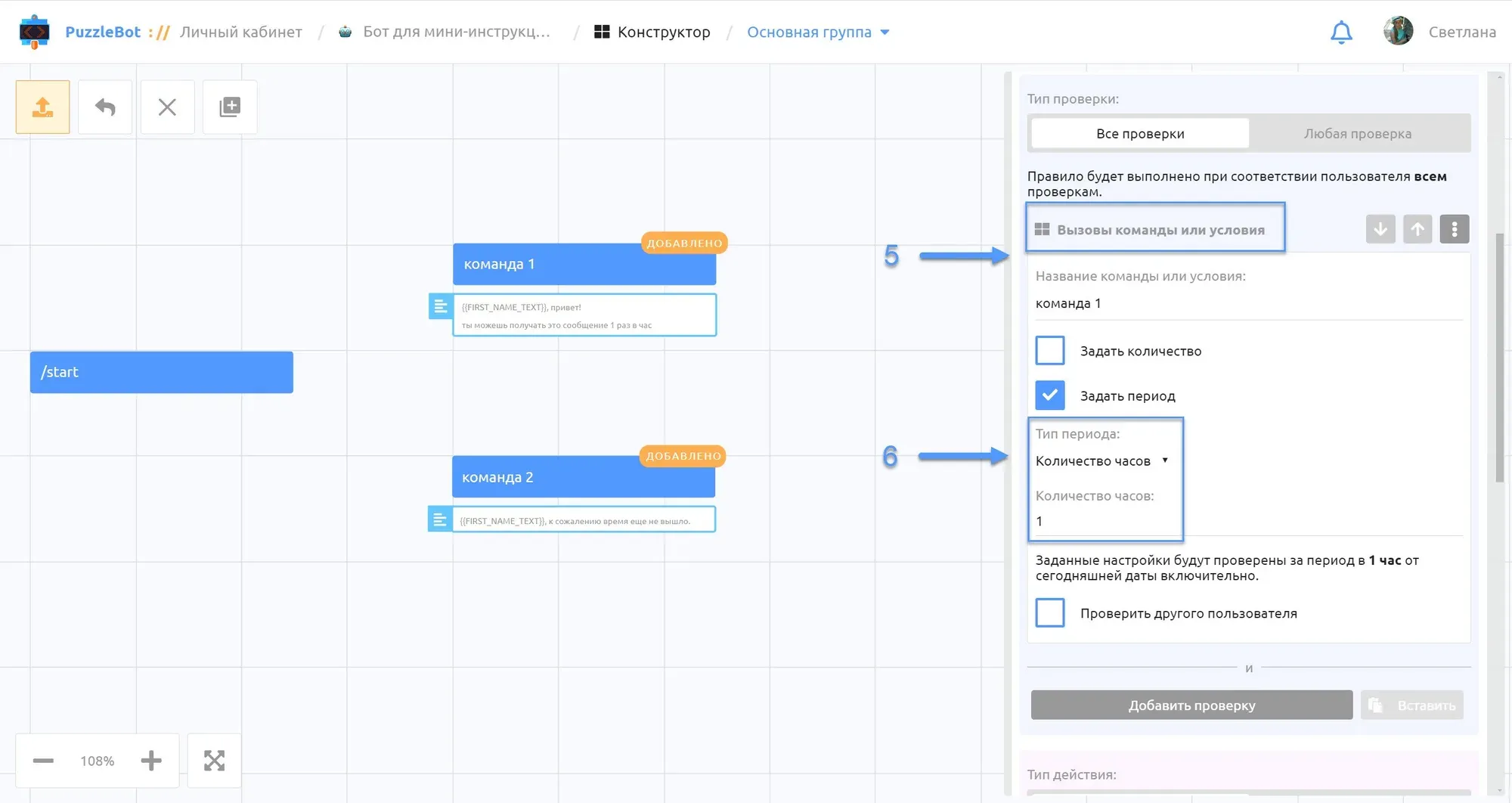
Add a check:
5. Set the check type to "Command or condition call".
6. Enable the "Set period" option. Additional sections will appear. Choose the "Number of hours" period type and set the time you need — 1 hour.
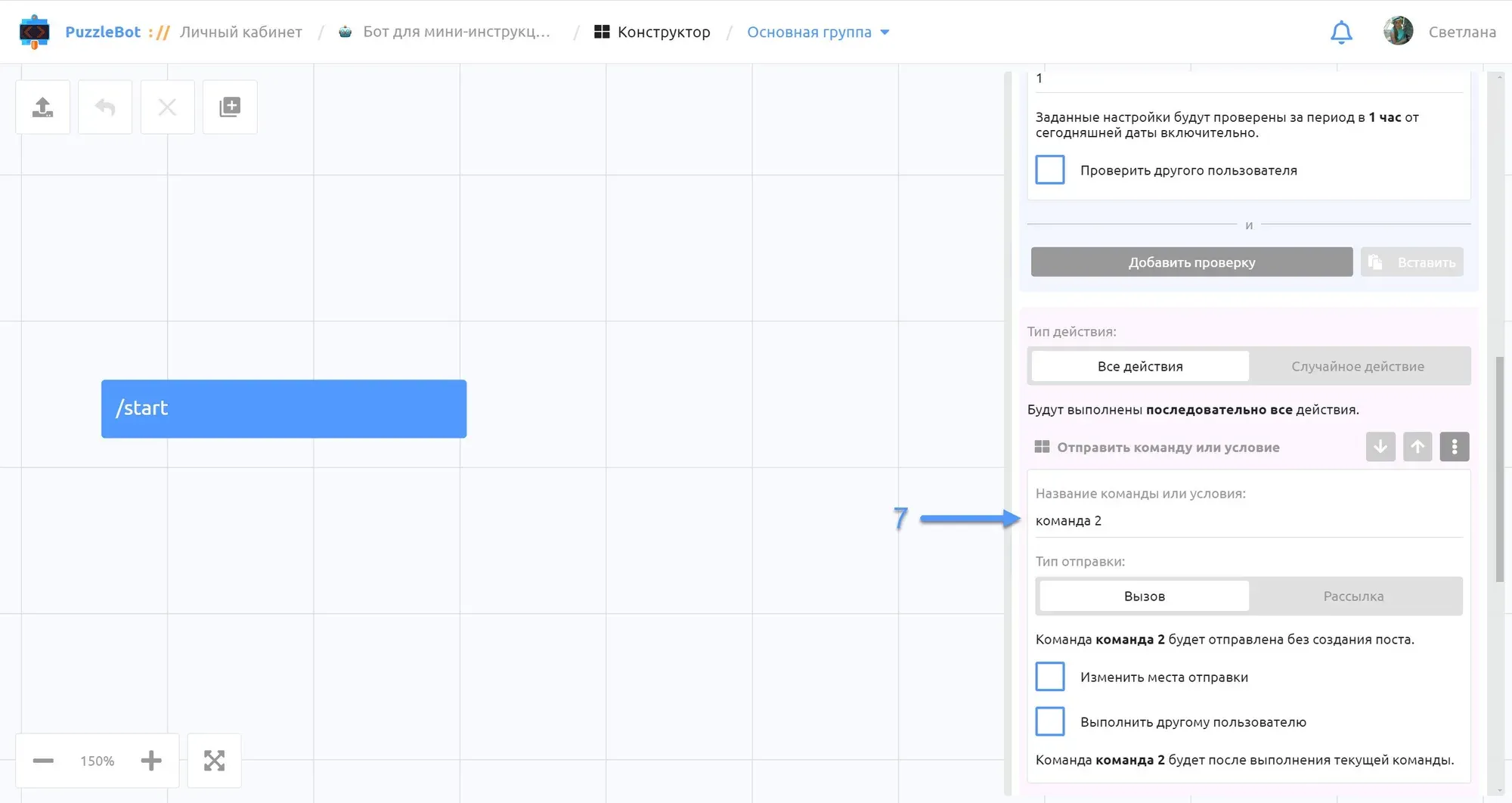
7. Set the action type to Send command or condition and select the command that will warn the user it's too early to call the command again.
If the "main" command was called less than 1 hour ago, the check won't let it be called again and will send the user a notification message instead. This way the user won't feel that the bot is ignoring them.
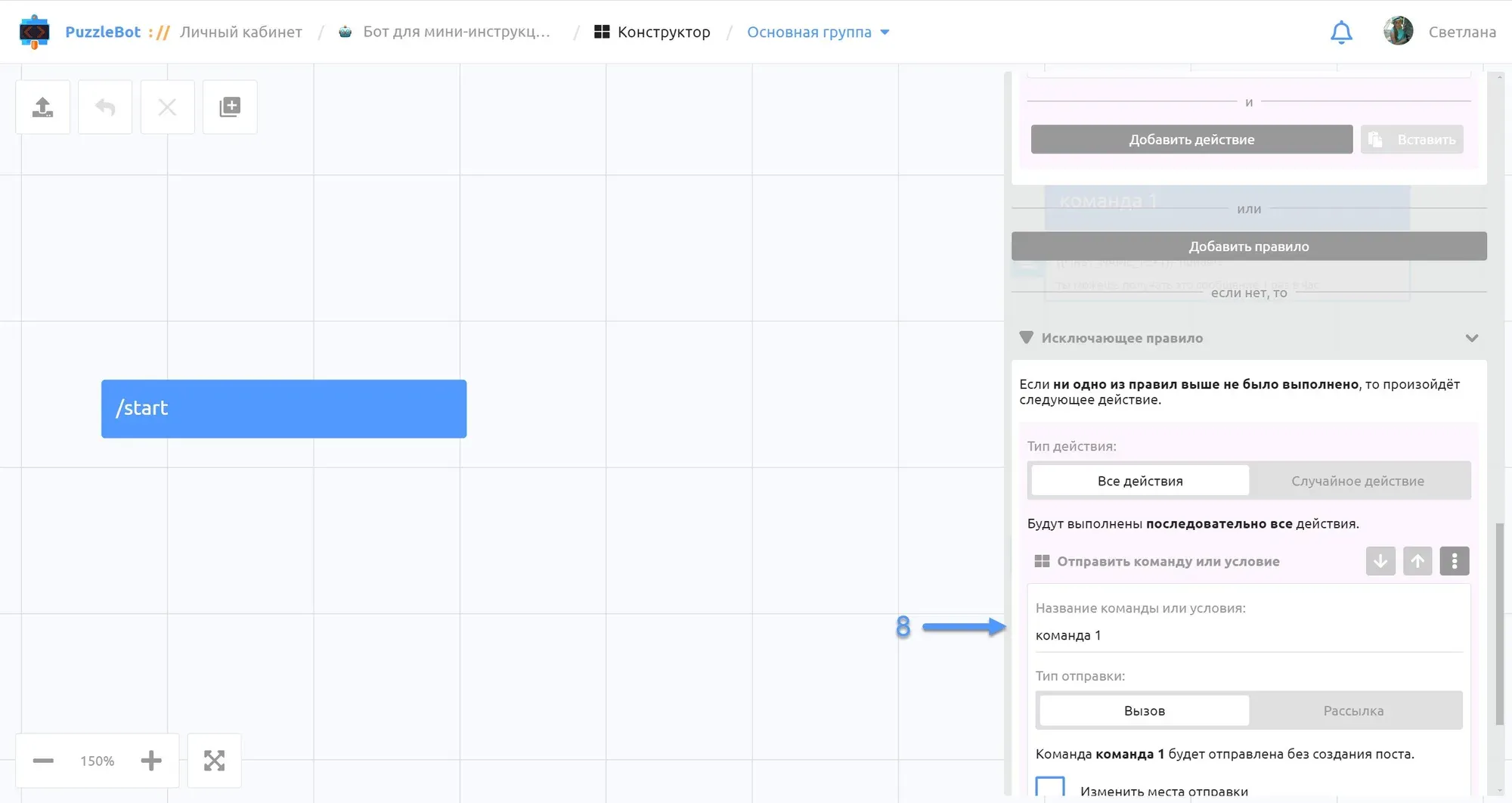
8. In the exclusion rule, set the action type to Send command or condition and select the "main" command.
If more than 1 hour has passed since the "main" command was last called, it will be sent when called.
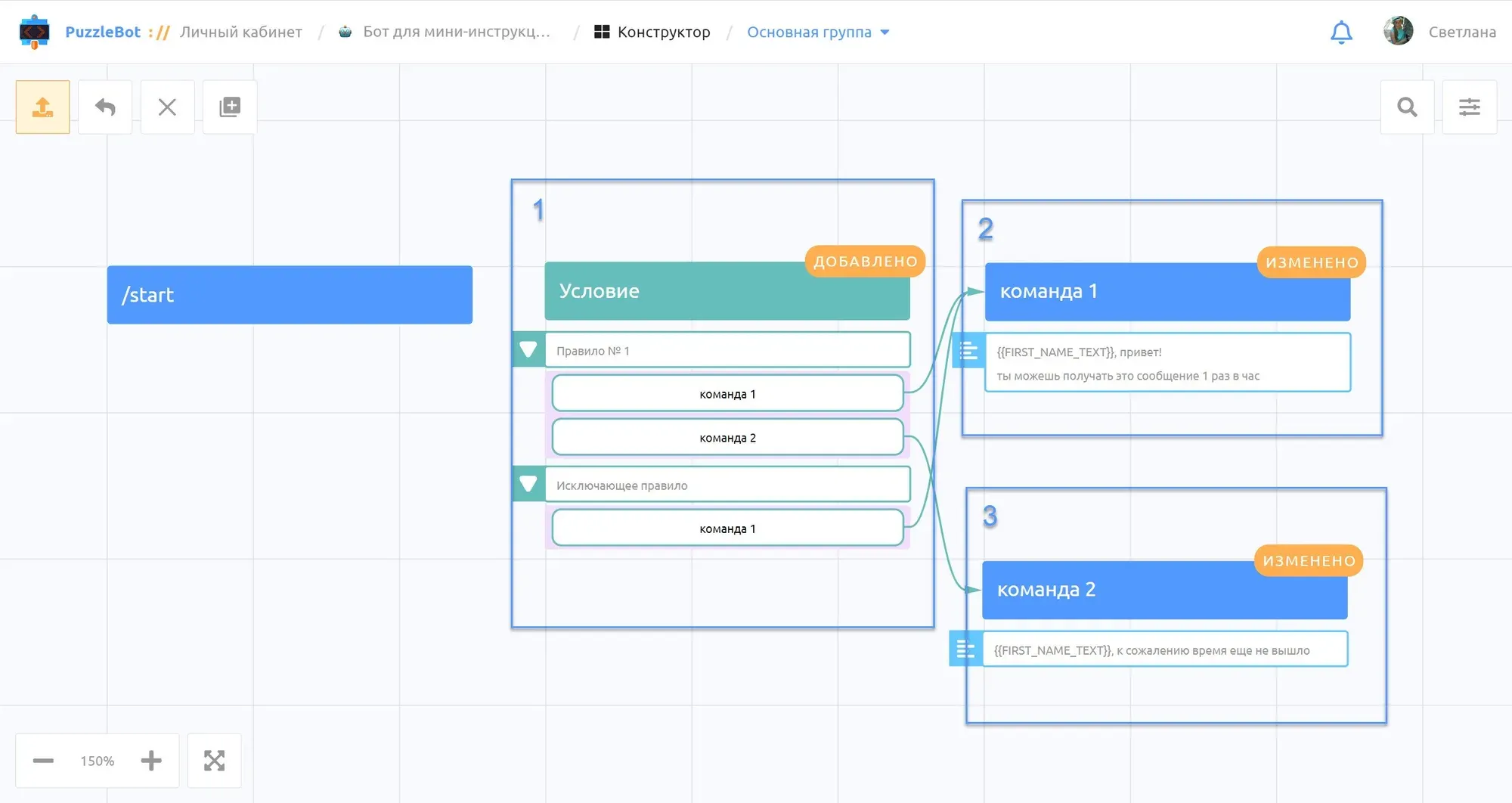
Here's the intermediate result you should have:
1. Condition - runs the check and sends the user one of two commands.
2. Command 1, or the "main" command, if it's called for the first time or more than 1 hour has passed since the last call.
3. Command 2, or the "notification" command, if less than 1 hour has passed since the "main" command was last called.
Step 5 — Add an inline keyboard to call the main command
Create a "base" command that lets the user call the "main" command. To do this, repeat steps 1–4 from Step 2.
All that's left is to create a button the user can tap to call the "main" command and "link" the commands together.
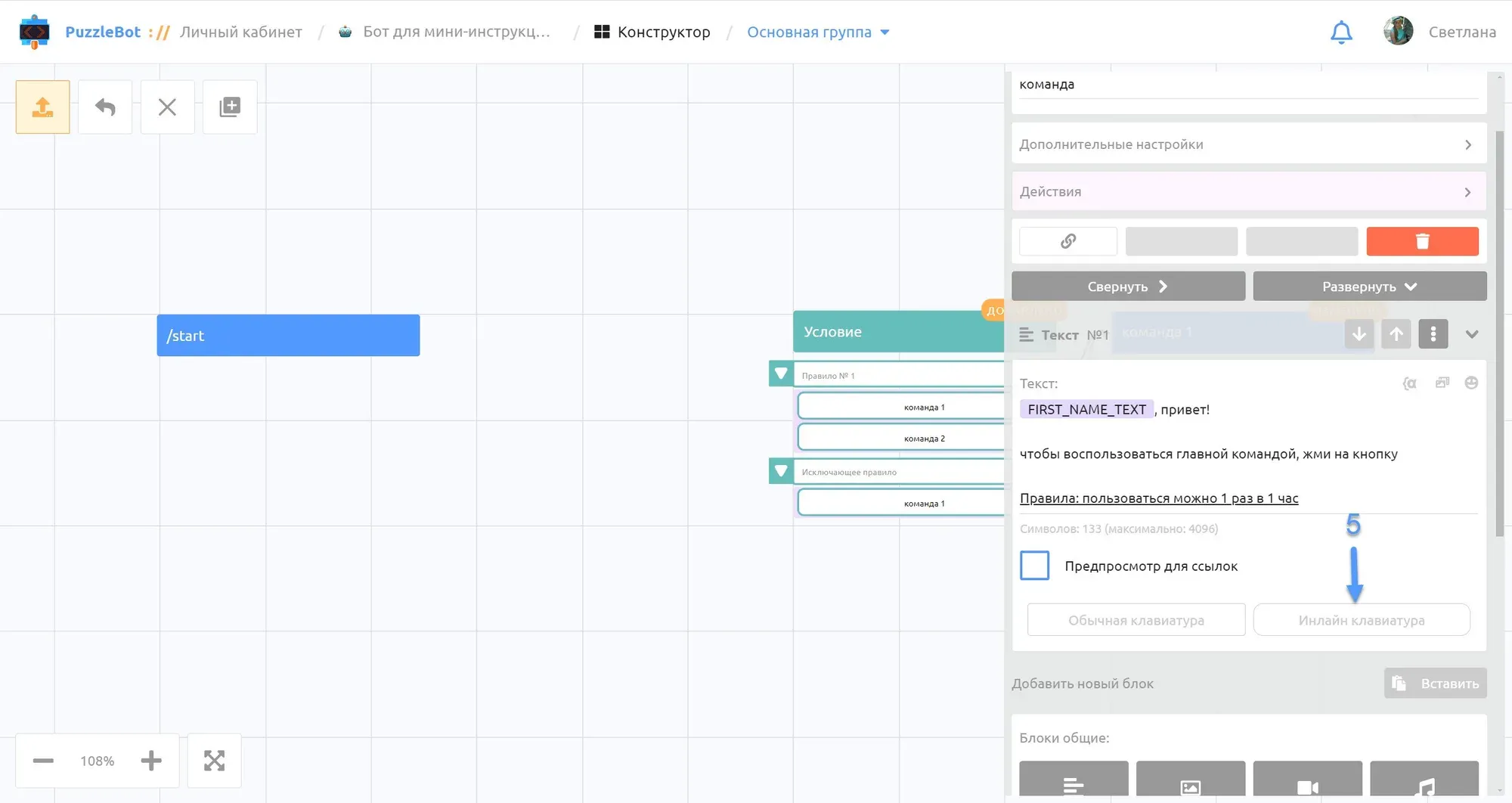
5. Click the button "outline" labeled Inline keyboard.
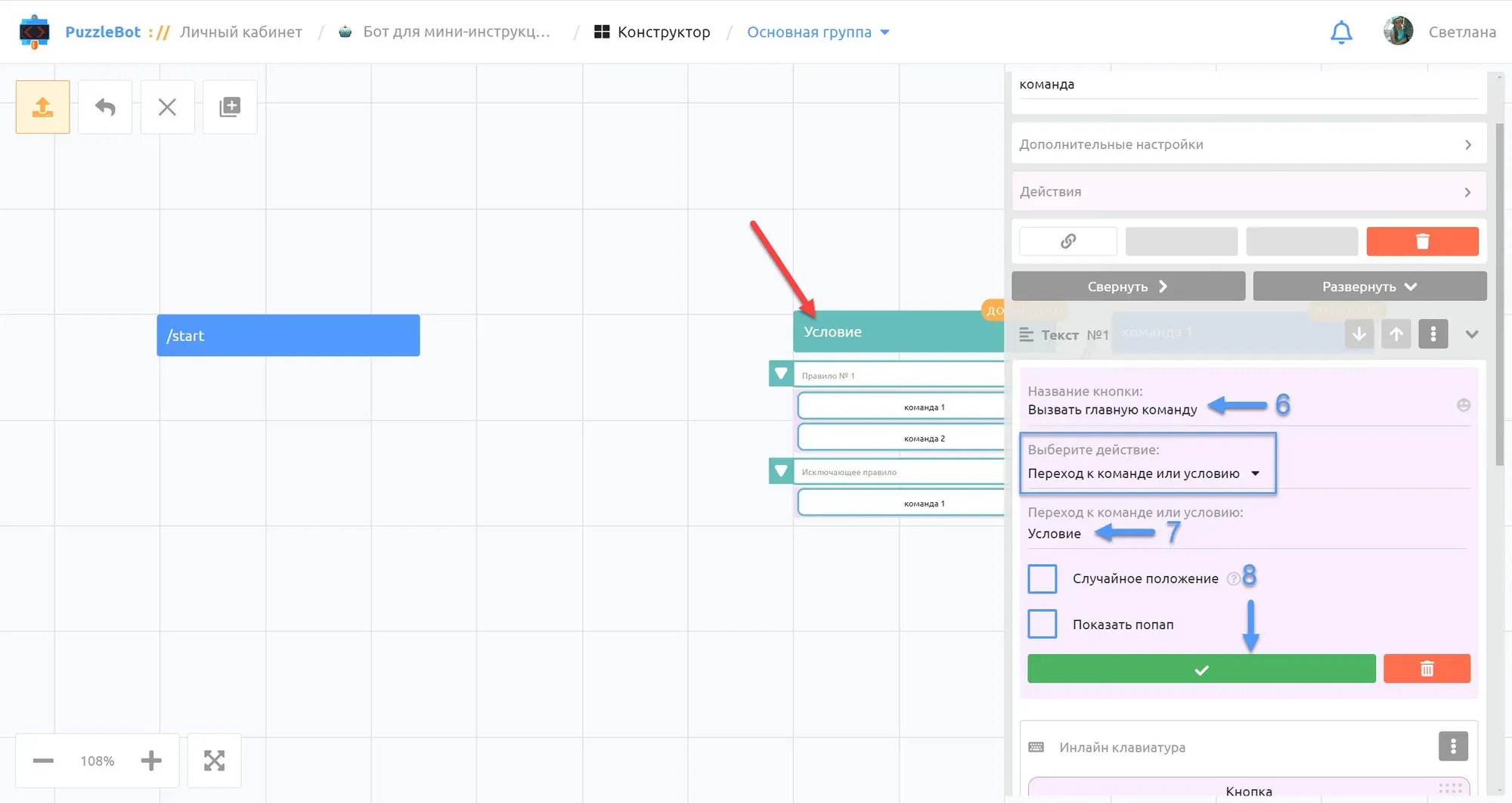
6. Enter the button name.
7. Go to command or condition is set as the action type by default — leave it as is. Choose the command the bot will send when the button is tapped. Be sure to choose the Condition command, since it's the one that decides what to send to the user.
8. Save the settings.
Step 6 — Connect the commands and upload the changes
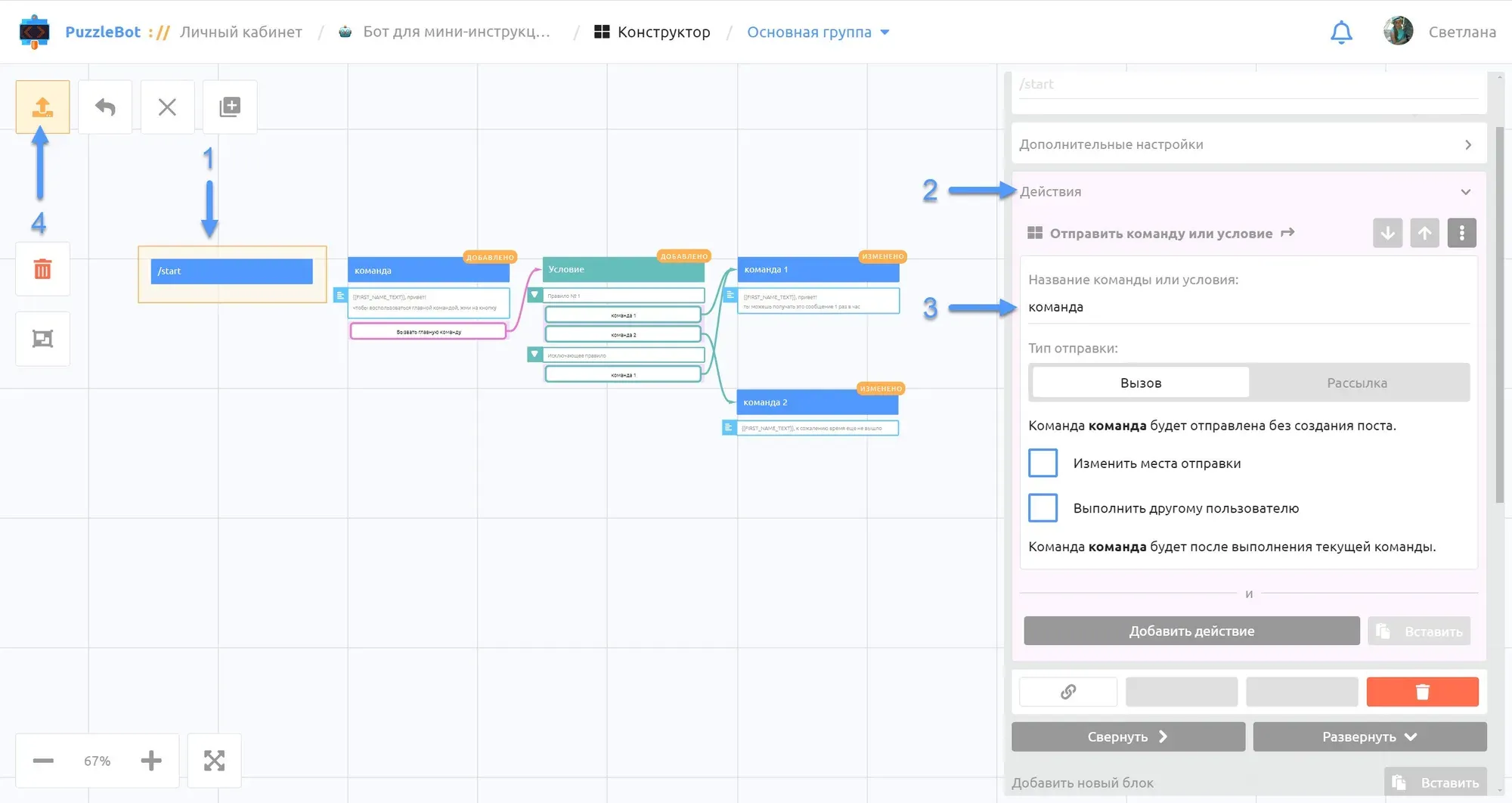
1. Open the /start command.
2. Open the Actions section.
3. Find the Send command or condition action and select the "base" command.
4. Upload the changes.
Step 7 — Test the bot from any account
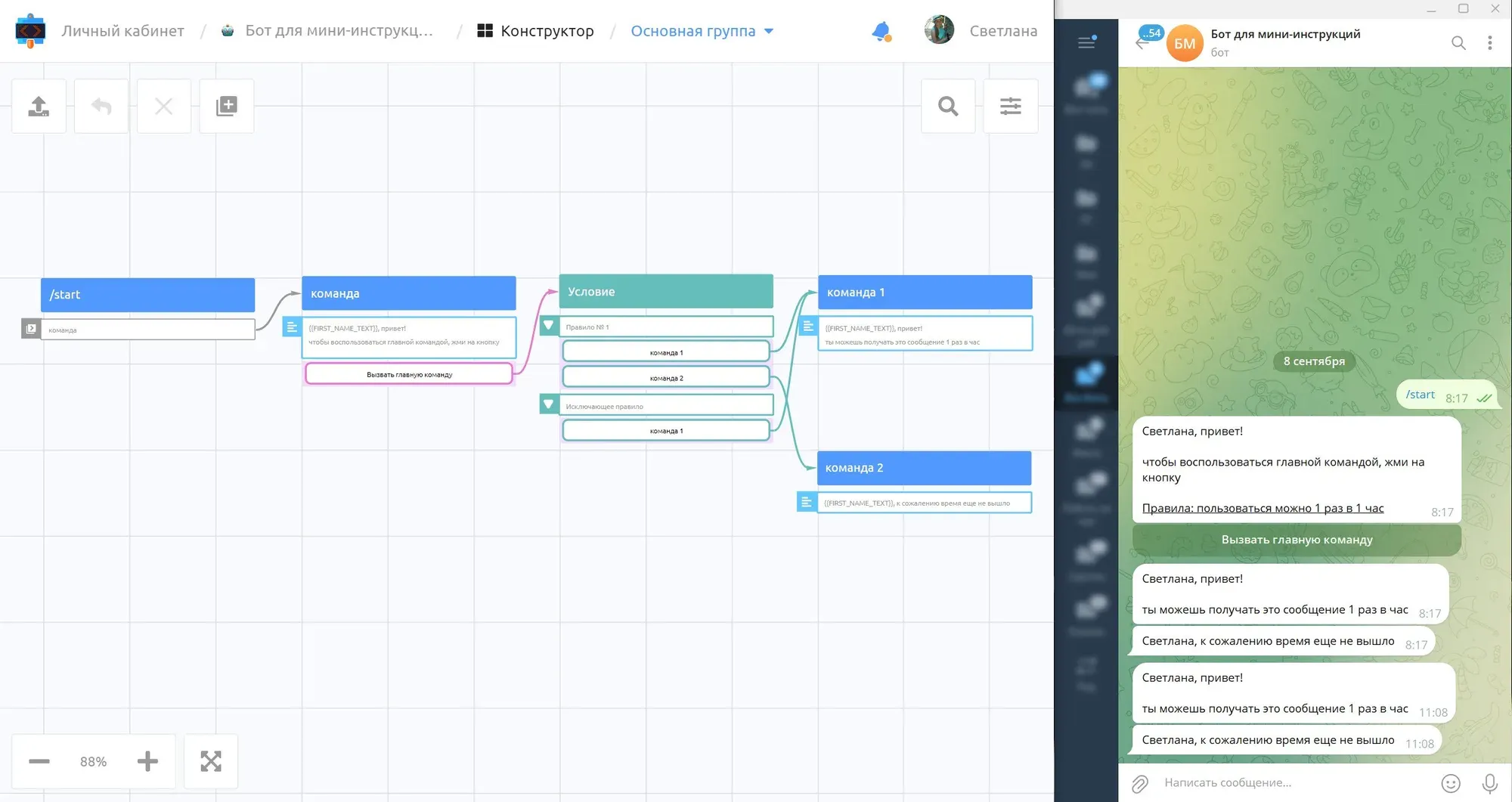
Test the bot from any account. Call the main command, and once you've received the materials, try calling it again. You should see a message saying the set time hasn't passed yet.
The setup is complete.
Want to ask an expert a question? Leave it in the comments under the latest post in our channel — the most interesting ones will get a detailed breakdown.